

How to buy LEGO parts for a MOC
What are you starting with?
- A Rebrickable inventoryExport a parts list and check the quantities still needed.
- A Studio model or BrickLink listUse a BrickLink Wanted List XML export.
- A spreadsheet or manual listChoose the template that matches your identifiers.
- Instructions without a parts listFind or prepare an inventory before shopping.
File already prepared? Upload your parts list
Check what the inventory includes
Use the designer's inventory for the version of the instructions you will follow. Keep the original unchanged and make a separate shopping copy.
- Complete model: the inventory usually covers the whole build. Subtract suitable pieces you already own.
- Alternate build: check which donor set is required and whether the design uses its spares or needs extra pieces.
- Modification or extension: establish whether the list covers the whole model or only the additions before subtracting the original set.

Twelve red 2 x 4 bricks needed. Five already owned.
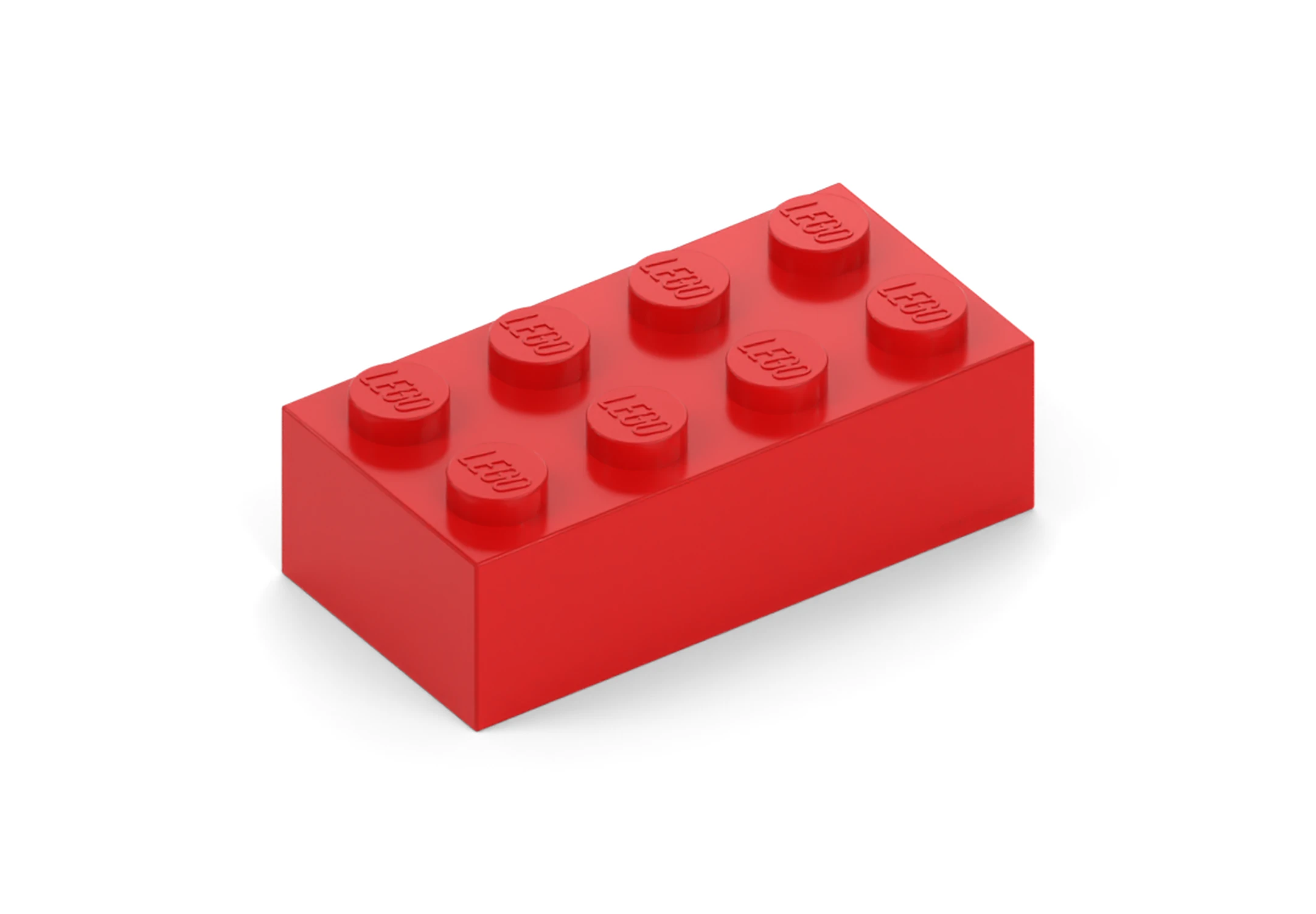
Rebrickable part
3001, colour 4.View this part and colour
You already have five in the correct colour. Your shopping list needs seven. We will use this same part and quantity in the file and preview examples below.
Prepare the file for your starting point
Upload one CSV, XLSX or BrickLink XML file, up to 1,000 rows and 2 MB. Keep each catalogue's part and colour IDs together. A numeric colour ID can identify a different colour in another catalogue.
From Rebrickable
Rebrickable IDs and spare rows
Keep letters and suffixes in part IDs, and use numeric Rebrickable colour IDs. Extra columns such as Is Spare are accepted, but the uploader does not automatically remove spare rows. Delete any you do not want to buy.
From Studio or a BrickLink Wanted List
In Studio, choose File → Export As → BrickLink Wanted List XML. For a BrickLink Wanted List, use its XML export. Upload the exported .xml file; the Studio .io model is not a parts-list upload format.
XML quantities: avoid subtracting owned pieces twice
If a wanted-list export includes both the total required (MINQTY) and already fulfilled (QTYFILLED), the uploader subtracts the fulfilled count. In our example, 12 required and 5 fulfilled produces a request for 7.
If you instead prepare a remaining-only list of 7, do not also carry over the fulfilled count of 5. For a fresh Studio export, check the quantities and account for pieces you already have before ordering.
Export parts rather than complete sets or minifigures. Resolve alternative-part rows before uploading. Inspect the condition badge on every preview row, even if your source list contains a condition preference.
From a spreadsheet or manual list
Use one row per part and colour, with the quantity you still need. Download a template and replace its example row:
- Rebrickable CSV template:
Part,Color,Quantity. - BrickLink IDs: use
Part,BrickLink Colour ID,Quantity. That explicit colour heading tells the uploader which catalogue you are using. - LEGO element CSV template:
Element,Quantity. An element ID identifies the part and colour. See the part-number guide if you only have a design number.
Spreadsheet layout and file checks
For XLSX, use one populated visible worksheet with headings in row 1. Use plain values without formulas or merged cells. Copy calculated quantities and paste them as values into your upload file. Save IDs as text to preserve leading zeros and suffixes.
Column order and capitalisation do not matter. Keep just one identifier format: part and colour IDs, or LEGO element IDs. Remove zero-quantity rows. If the list exceeds 1,000 rows or 2 MB, split it into smaller files without repeating requirements.
From instructions without a parts list
Check the download package or ask the designer for an inventory. If you need to make one yourself, record each part, colour and quantity from the instructions, then put the remaining requirements into a supported template. A photograph of the finished model cannot show all its internal pieces. PDFs and instruction images cannot be uploaded as a parts list.

3001,4,7. Use the actual column headings shown. The existing Rebrickable template starts with a quantity of 10; replace it with your own remaining quantity.Review the preview before adding parts
Open Upload Parts List and choose your file. The preview lets you check the matches before adding them to your basket.

Check the selected total, add the parts, then review the resulting basket. Stock can change between preview and adding. Reducing a quantity or unticking a row does not change the imported requirement used by the shortage list, so record anything you deliberately leave out as well.
Choose the next step for each problem
| What you see | What to do next |
|---|---|
| The file is rejected | Check the extension, headings, size and row limit. For XLSX, use a plain table with values in place of formulas. Open the format help above for your source. |
| An unrecognised part or row error | Check the part ID, suffix and numeric colour ID against the source catalogue. Correct the row and upload again. Use the part-number guide to check another reference. |
| The match has an unexpected colour | Check the colour-ID system and column heading first. Compare the colour name, not just its number. Read the colour-matching guide before choosing a replacement. |
| Correct part, too few available | Check another condition, identify a suitable substitute, or source the remaining quantity elsewhere. Keep the shortage on your list. |
Check a substitute's role in the model
- Hidden filler brick: another colour may work if the part has the same geometry, stays fully hidden and its colour is not needed to follow the assembly steps.
- Visible or decorated piece: a colour, print or finish change alters the model's appearance. Check the instructions and nearby pieces before accepting it.
- Clip, hinge or Technic component: compare the connections, offsets, clearance and movement. Similar dimensions alone do not establish compatibility. Follow the designer's substitutions where supplied.
Keep the remainder across every order
If you complete an order for 4 of our example bricks, you still need 3. Record the quantity actually ordered, including any final basket changes, before preparing another upload.
| Required | Owned before the project | Ordered for the project | Still needed |
|---|---|---|---|
| 12 | 5 | 4 | 3 |
Download the MOC tracking worksheet (.xlsx). It includes this example and calculates required − owned before the project − ordered, with a minimum of zero. Keep a separate row for each part and colour.
- Owned before: the pieces you allocated from your collection at the start. Keep this baseline fixed.
- Ordered: all pieces ordered for this project, including those already delivered. Do not also add them to the Owned before column.
- Still needed: the remainder to source. If an order is cancelled or pieces cannot be supplied, reduce Ordered so the shortage returns to the list.
Check the basket and the cost of finishing
- Every selected part has the intended colour, version, condition and quantity.
- Existing basket lines and earlier orders have been counted once.
- Essential shortages have a sourcing plan, and substitutions have been checked.
- The total budget includes delivery, remaining parts from other orders and instructions if sold separately.
- Your tracking list is ready to record the quantities actually ordered.