Forgot something?Add more parts to your collection for another {{ combine.minutesRemaining }} {{ combine.minutesRemaining === 1 ? 'minute' : 'minutes' }}.
Add more parts with no extra shippingfor another {{ combine.minutesRemaining }} {{ combine.minutesRemaining === 1 ? 'minute' : 'minutes' }}.before {{ combine.deadlineTimeLabel }}.
Find the colour name to choose in our shop, compare commonly confused shades and check a replacement against the pieces you already own.
Confirm the colour reference, then check the name in the shop.
An element number or a known set inventory helps identify the intended colour. To match the appearance of an existing build, compare a physical sample beside the pieces already in it.
Start with your building task
Repairing a known set
Find the piece in the instruction inventory. Search its element number, then confirm the selected colour and design.
Matching a loose piece
Compare it with a physical piece whose colour you know. Use the name mapping below to find the matching shop label.
The design number moulded into a piece identifies its shape. It does not identify its colour, so a design-number match still needs a colour check.
Choose the shop label that matches your reference
The first column shows the name in our product colour selector. LEGO and BrickLink names alongside it identify the same catalogue colour.
Common grey and brown names translated into shop labels
Choose in our shop
Other names for this colour
Light Grey
BrickLink: Light Bluish Gray LEGO: Medium Stone Grey
Dark Grey
BrickLink: Dark Bluish Gray LEGO: Dark Stone Grey
Old Light Gray
BrickLink: Light Gray LEGO: Grey
Old Dark Gray
BrickLink: Dark Gray LEGO: Dark Grey
Brown
BrickLink: Reddish Brown LEGO: Reddish Brown
Old Brown
BrickLink: Brown LEGO: Earth Orange
Read the whole name, including “Old”, “Light” and “Dark”.
Our Brown is BrickLink's Reddish Brown. For BrickLink's older Brown, choose Old Brown. Also keep LEGO's Light Stone Grey separate from Medium Stone Grey: Light Stone Grey is BrickLink's Very Light Bluish Gray.
Colour IDs belong to particular catalogues. A LEGO colour ID, a BrickLink colour ID and an element number serve different purposes. For a part search, use the design or element reference; use the names above to choose its colour.
Compare the old and newer greys and browns
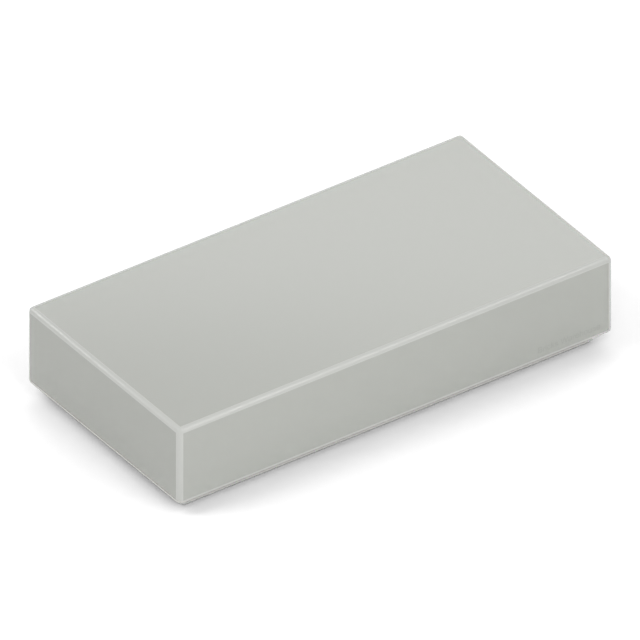
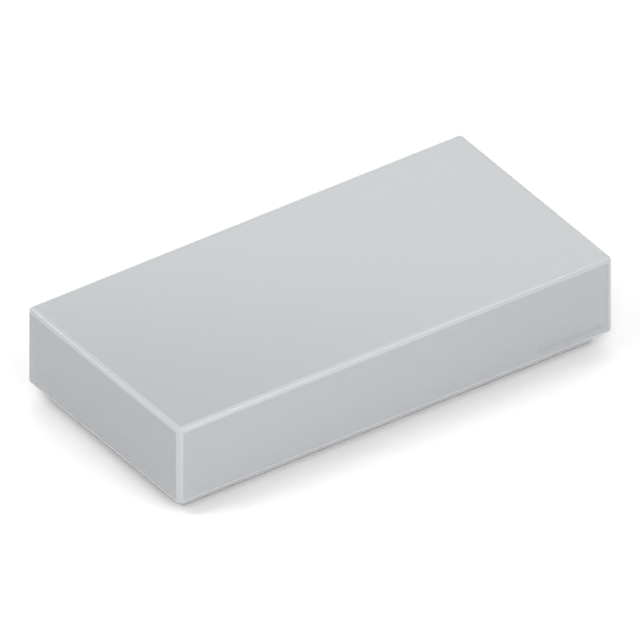
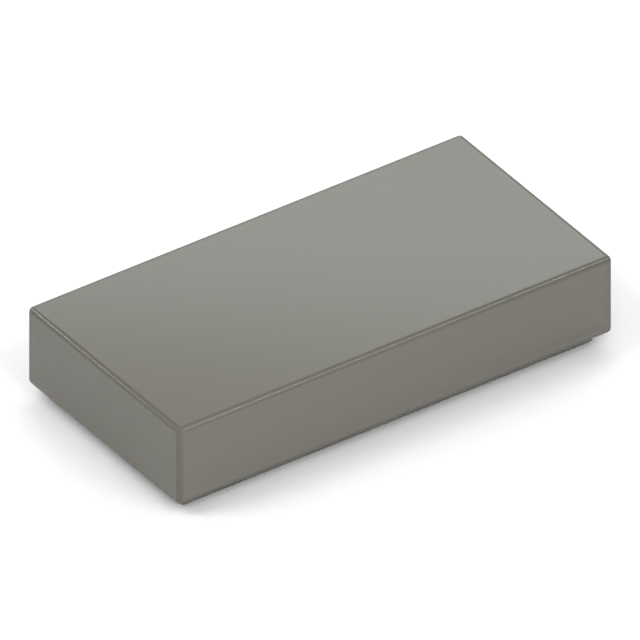
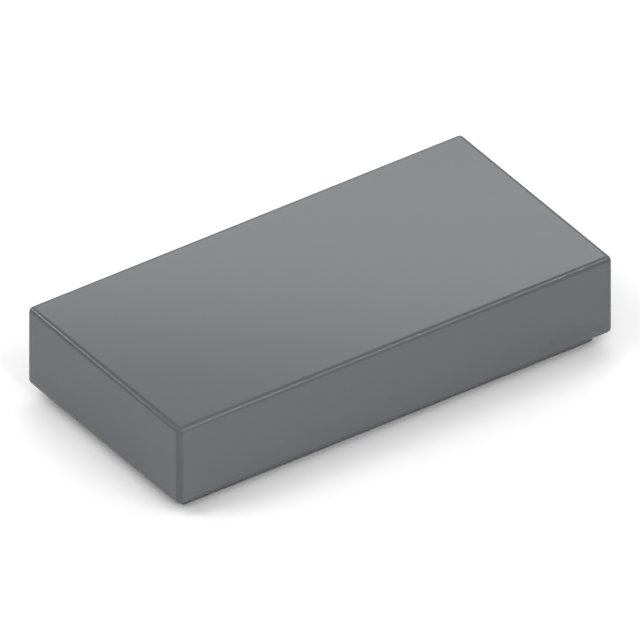
These comparisons use the same 1 x 2 tile and lighting. Each caption starts with its shop label. Screen colours are indicative; use a verified colour reference or physical sample to confirm your choice.
Light greys
Old Light GrayBrickLink: Light GrayLEGO: GreyLight GreyBrickLink: Light Bluish GrayLEGO: Medium Stone Grey
Dark greys
Old Dark GrayBrickLink: Dark GrayLEGO: Dark GreyDark GreyBrickLink: Dark Bluish GrayLEGO: Dark Stone Grey
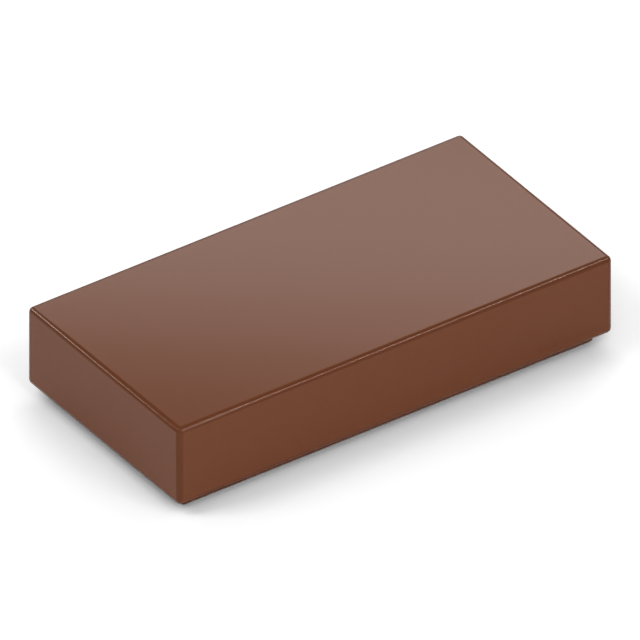
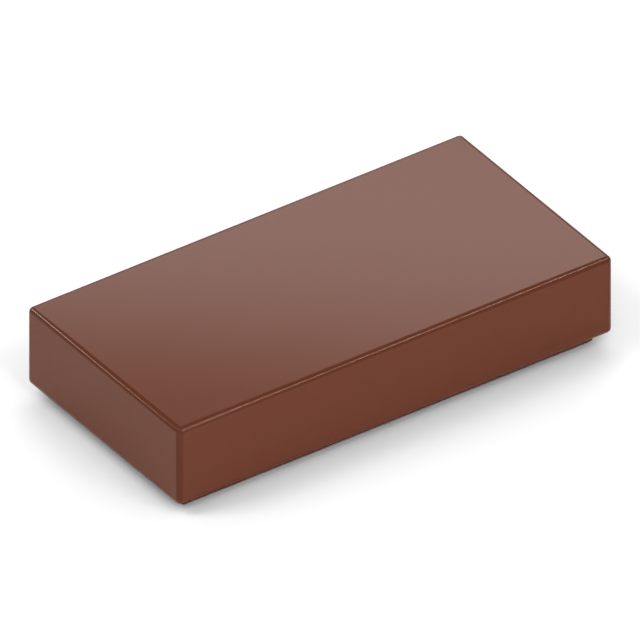
Browns
Old BrownBrickLink: BrownLEGO: Earth OrangeBrownBrickLink: Reddish BrownLEGO: Reddish Brown
LEGO changed its grey and brown palette around 2004. Old and newer colours are distinct catalogue choices. Check the actual inventory of an older model; its age alone cannot establish the colour of every piece, especially after earlier repairs.
Worked example: from 4211795 to Light Grey
Suppose your instruction inventory identifies a missing 2 x 6 brick as element 4211795.
Check the alternative names. LEGO's Medium Stone Grey and BrickLink's Light Bluish Gray are aliases for the shop colour Light Grey. Old Light Gray is a different choice.
Choose condition and quantity. Check what is available and buy the number still missing from your model. If the visual match matters, compare a small physical sample before ordering the rest.
A design-number search for 2456 starts with the shape and still needs a colour choice. The part-number guide explains how to read both identifiers.
Compare physical pieces before a large order
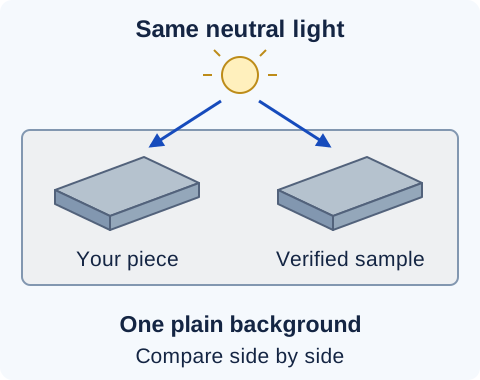
Use one neutral background and the same lighting for both pieces. This diagram illustrates the setup; the labelled tiles are not colour reference samples.
Choose a reliable sample. Use a piece with a verified element reference or known catalogue colour. A second unidentified piece only gives you another guess.
Compare them together. Put both pieces side by side under neutral lighting, away from strongly coloured surroundings. Compare similar surfaces and finishes.
Check more than one piece or surface. Compare the shade across several of your existing pieces. Production batches and exposure over time can affect their colour.
Check the actual model. Place the candidate in the wall, floor or other visible area it needs to match. Allow for the sample cost and another delivery if you order in stages.
Match the finish as well as the colour
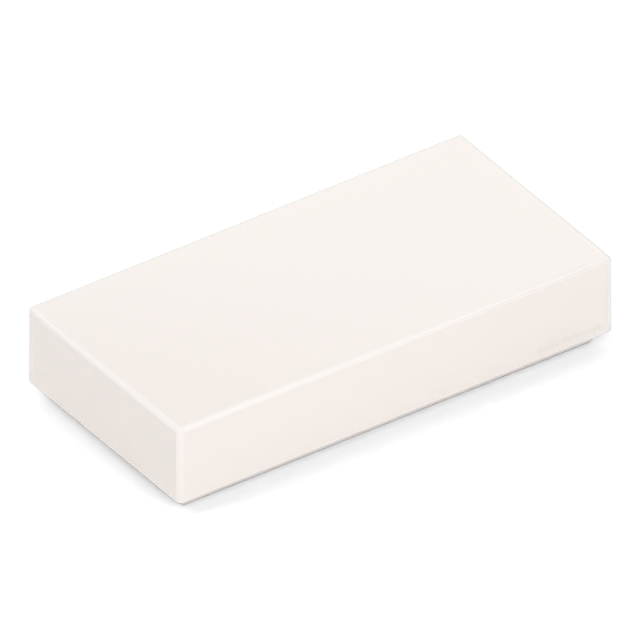
Keep words such as transparent and pearl in your requirements. These examples show different colours and material finishes on the same tile design.
For a window, light or decorative trim, check the complete colour and finish description. A printed piece also needs the required pattern: matching its base plastic colour does not reproduce the decoration.
What to do when the match is uncertain
The names differ
Check the shop-name table and the aliases beneath the product image. Use an element number or known inventory to confirm the identity before choosing a nearby-sounding name.
The colour is correct, but it looks different
Separate catalogue identity from a visual match. Pieces with the same catalogue colour can still vary slightly in shade. Compare a physical sample with the existing model.
A retired colour has a successor
A “replaced by” note identifies the newer catalogue colour. The comparison images show why that successor can look different. For a restoration, keep the original colour unless you deliberately accept the change.
The required colour is unavailable
Check the condition options and required quantity on the exact product. If you consider another colour, check where it will be visible and record the substitution before ordering.
For a custom build, check the limiting pieces first
Start with unusual windows, panels, curves and decorated parts, then check enough ordinary bricks and plates exist in the chosen colour. A hidden support may allow a substitution; check gaps, windows and open sections before deciding it will be hidden. Keep deliberate changes marked on your parts list.
The MOC buying guide explains preparing and uploading your remaining requirements.
Common questions
Is BrickLink's Light Bluish Gray the same as LEGO's Medium Stone Grey?
Yes. Both names refer to the colour labelled Light Grey in our shop. Old Light Gray is a separate colour, and LEGO's Light Stone Grey is also different.
Will replacement pieces perfectly match my existing build?
Not necessarily. The correct catalogue colour does not guarantee an identical shade beside every existing piece. Compare a small sample in the model when appearance is important.
Can I identify the exact colour from a photo?
A photo can narrow the possibilities. Lighting, exposure and the screen affect its appearance. Confirm using an element number, a known inventory or a verified physical sample.
Does every LEGO part come in every colour?
No. Verify that the particular design exists in your chosen colour and check the available quantity. An unusual part may determine the palette for the rest of a custom build.
Your next piece
Put your parts list to work.
Search genuine LEGO parts by number or description, then choose your colour and condition.